
A React flowchart editor with undo and redo
Drag, connect, delete, snap to a grid, copy and paste, flowchart shapes —
and undo for all of it. Undo, copy and paste, snap guides, export and the shapes are free in Flowinger, as
separate entry points. The whole app is examples/editor.
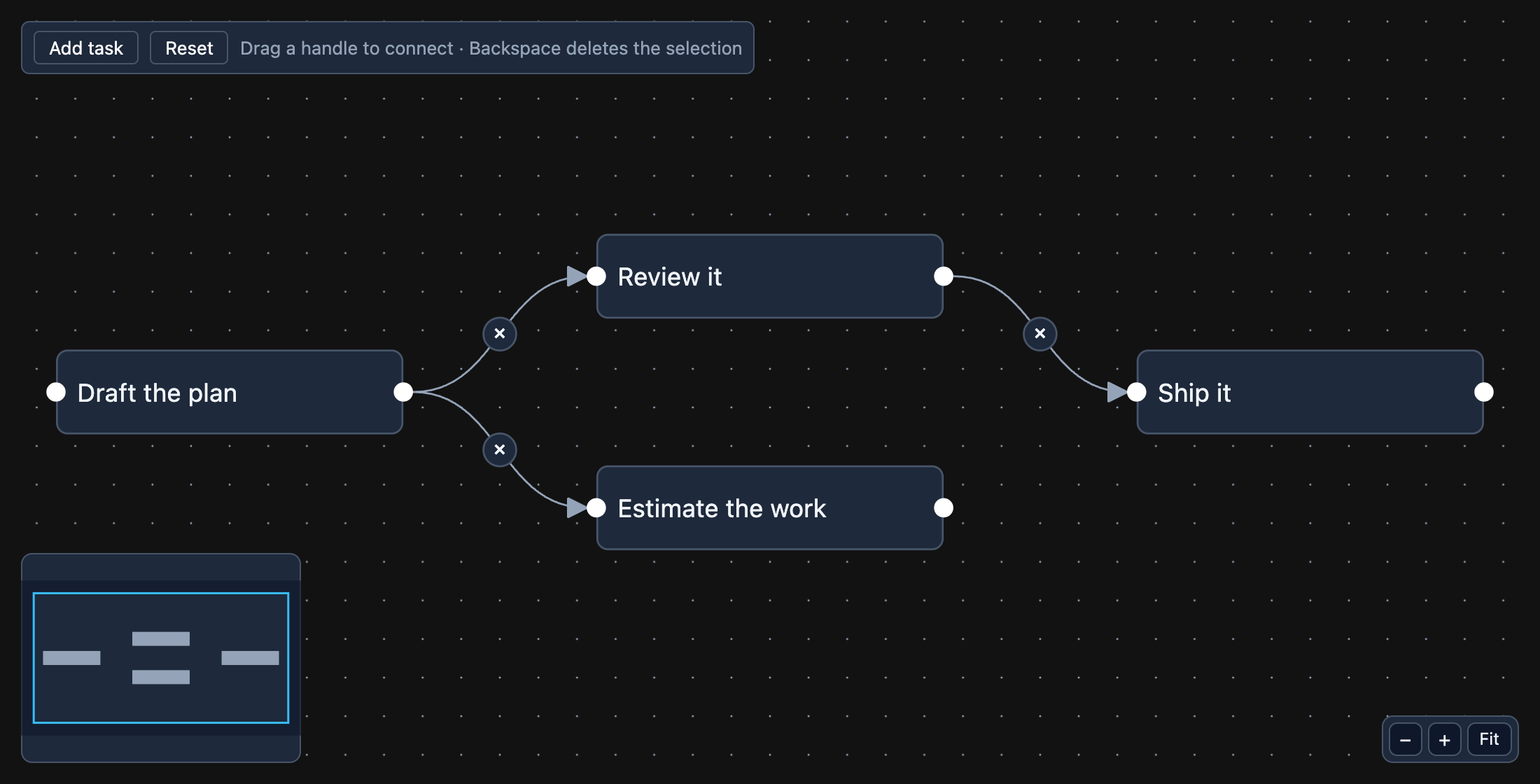
An editable canvas
Section titled “An editable canvas”Nothing drags, connects or selects until you say so (React Flow turns these on by default). The canvas reports each change, and you apply it to your state:
import { Background, Controls, FlowingerCanvas, FlowingerProvider, addEdge, useEdgesState, useNodesState } from 'flowinger';
function Editor() {  const [nodes, , onNodesChange] = useNodesState(initialNodes);  const [edges, setEdges, onEdgesChange] = useEdgesState(initialEdges);  return (    <FlowingerCanvas      nodes={nodes}      edges={edges}      onNodesChange={onNodesChange}      onEdgesChange={onEdgesChange}      onConnect={(c) => setEdges((es) => addEdge({ ...c, markerEnd: 'arrowclosed' }, es))}      nodesDraggable      nodesConnectable      elementsSelectable      deleteKeyCode={['Backspace', 'Delete']}      fitView    >      <Background />      <Controls />    </FlowingerCanvas>  );}
useNodesState and the history below need a FlowingerProvider above the editor.
Undo and redo
Section titled “Undo and redo”useUndoRedo from flowinger/history keeps the stack; you say when a state is worth going back to. Take the
snapshot before the change, so there is something to return to:
import { useUndoRedo } from 'flowinger/history';
const { undo, redo, canUndo, canRedo, takeSnapshot } = useUndoRedo({ enableShortcuts: true });
<FlowingerCanvas  onNodeDragStart={() => takeSnapshot()}  onBeforeDelete={(elements) => { takeSnapshot(); return elements; }}  onConnect={(c) => { takeSnapshot(); setEdges((es) => addEdge(c, es)); }}  /* … *//>
<button onClick={() => undo()} disabled={!canUndo}>Undo</button><button onClick={() => redo()} disabled={!canRedo}>Redo</button>
enableShortcuts gives Ctrl/⌘+Z and Ctrl/⌘+Shift+Z (or Ctrl/⌘+Y), except while typing in a field.
Flowchart shapes
Section titled “Flowchart shapes”flowinger/shapes has the node types a flowchart uses — diamond, cylinder, hexagon and more — to spread into
your nodeTypes:
import { shapeNodeTypes } from 'flowinger/shapes';
const nodeTypes = { task: TaskNode, ...shapeNodeTypes }; // outside the componentconst decision = { id: 'd', type: 'diamond', position: { x: 260, y: 45 }, width: 120, height: 80, data: { label: 'Approved?' } };
Copy and paste, snap guides, smart edges
Section titled “Copy and paste, snap guides, smart edges”import { useClipboard } from 'flowinger/clipboard';import { useSnapLines, SnapLinesOverlay } from 'flowinger/snaplines';import { SmartEdge } from 'flowinger/smart-edges';
const { copy, paste } = useClipboard({ enableShortcuts: true }); // Ctrl/⌘+C, V, Xconst { snapLines, snapNodeChanges } = useSnapLines({ threshold: 6 }); // align to other nodesconst edgeTypes = { smart: SmartEdge }; // routes round nodes
<FlowingerCanvas onNodesChange={(changes) => onNodesChange(snapNodeChanges(changes, nodes))} edgeTypes={edgeTypes}> <SnapLinesOverlay snapLines={snapLines} /></FlowingerCanvas>A node with an input in it
Section titled “A node with an input in it”A node is your component. Give anything that takes a press — an input, a button — the nodrag class, so using
it does not drag the node, and keep its value in data with updateNodeData:
function TaskNode({ id, data }: NodeProps) { const { updateNodeData } = useReactFlow(); return ( <div className="task"> <Handle type="target" position={Position.Left} /> <input className="nodrag" value={String(data.title)} onChange={(e) => updateNodeData(id, { title: e.target.value })} /> <Handle type="source" position={Position.Right} /> </div> );}Read next
Section titled “Read next”- The “pro” modules — every option of history, clipboard, snap lines, shapes and smart edges.
- Save and load the flowchart as JSON.
- A workflow builder in Next.js.